
A 60-minute fitness or health video: turn it into a plan you can follow
Paste a long fitness or health video into sum.video and get the exercises, routine and key points with timestamps, so you can start instead of scrubbing.
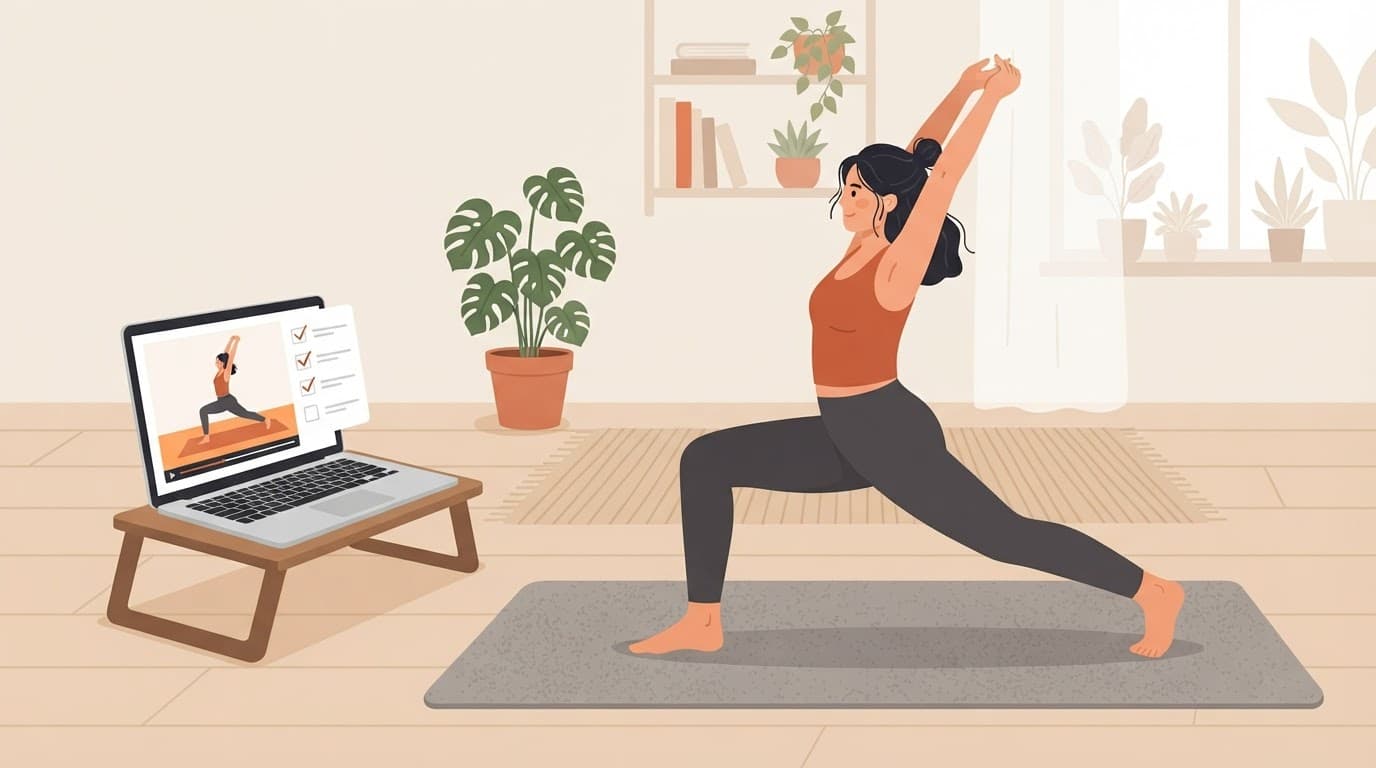
You can turn a long fitness or health video into a short plan in a few minutes: paste the link into sum.video, read the key insights, then jump to the timestamps that show the exercises or steps you want to try. You skip the intro, the sponsor segments and the repeated explanations, and keep what you can actually do.
This post walks through one concrete situation. It is general information about using a summary as a study aid, not medical advice.
The situation
You found a 60-minute YouTube video on fixing your posture, building a home workout routine or understanding a sleep or nutrition topic. It has a lot of useful parts, but the first ten minutes are the presenter's story, a sponsor read sits in the middle, and the one exercise you wanted is somewhere after minute 35. You have 15 minutes before your evening, and you would like to start tonight, not "someday".
What you need out of it
A short, usable result, not a wall of text:
- The main claims of the video, in order, so you can judge whether it is worth your hour.
- The exercises, steps or habits it recommends, each with the moment where it is demonstrated.
- A list you can copy into your notes app and tick off.
Step by step with sum.video
- Copy the video link. It must be a public YouTube video with captions or a transcript. Without captions it cannot be summarized (see what to do when a video has no captions).
- Paste it on the homepage, or put
sum.video/in front of the YouTube address. You can also use the Chrome extension, which adds a Summarize button next to the player. - Read the key insights first. Each insight has a timestamp. You will see the presenter's main points in the order they appear, for example "start with a short mobility warm-up" or "the common mistake is rushing the movement". Read them all before deciding what to watch.
- Open Key moments. Every summary includes the 5 to 7 best parts of a long video, each with a title and a one-line summary. Use Play all to watch them back to back in YouTube's own player on the website or in the Chrome extension. In the apps, each moment opens YouTube at that point. Nothing is downloaded or cut; the video plays on YouTube.
- Click a timestamp to see the exercise itself. For anything physical, reading is not enough: watch the demonstration at the exact moment. Click the timestamp on the insight and the video jumps there.
- Ask the chat a specific question. The chat answers from the transcript, for example "which exercises does the presenter recommend, and how many repetitions?" or "what does the presenter say about rest days?". If the video never says it, you will not get it from the transcript, so treat a missing answer as "not covered".
- Copy as Markdown into your notes. The summary with its main points and timestamped chapters is ready to paste into Notion or Obsidian. See how to copy a YouTube summary into Notion or Obsidian.
What you end up with
After about ten minutes you have something like this in your notes:
| Part of the video | What you keep |
|---|---|
| Minutes 0 to 8 | The presenter's background: skipped |
| Minutes 8 to 20 | Why the problem happens: three points, one line each |
| Minutes 20 to 40 | The five exercises, each with its timestamp |
| Minutes 40 to 50 | A weekly routine: how often, in what order |
| Minutes 50 to 60 | Sponsor and recap: skipped |
And a short checklist, for example:
- Watch the demonstration of exercise 1 (timestamp) and try it tonight
- Add the warm-up to the start of the session
- Re-watch the section on common mistakes once, with your own movement in mind
You started with an hour of video and ended with a plan you can follow and a list of the three moments worth watching in full.
Making it stick
A summary does not replace practice. A few habits help:
- Watch the demonstrations, do not only read them. Form and technique are visual, so use the timestamps to see them.
- Pick one thing per week. A summary can give you ten recommendations. Start with one or two and add more later.
- Compare two sources when the topic matters. If two videos give different advice, you can paste both into the compare feature (2 to 10 videos, optionally with a question) and see where they agree and where they differ. Comparing several videos before you buy shows the method.
- Keep the transcript handy. The full transcript is in a tab, searchable and copyable, so you can find the exact sentence where the presenter gave a number or a warning.
Where this falls short
Be honest about the limits:
- A summary is not advice for your body. The summary repeats what the video says. It does not know your health, injuries or goals. For pain, an injury, a medical condition or a diet change, talk to a qualified professional.
- It does not judge whether the claims are right. It condenses what was said. A confident presenter can still be wrong, and a summary will not fact-check them. Treat strong promises as claims to verify elsewhere.
- Visual-only content is missed. If the presenter says "like this" while showing a movement, the transcript cannot describe it. That is why the timestamps matter: use them to watch the part that matters.
- No captions, no summary. A video without captions or a transcript cannot be summarized.
- Free accounts are limited. The free plan includes 3 summaries a week, and Pro offers unlimited text summaries. In the US, Pro is $4.99 a month, or $39.90 a year with a 15-day free trial on the annual plan. Prices vary by country. See pricing.
Quick recap
- Paste the link into sum.video.
- Read the key insights and decide whether the video deserves your time.
- Use Key moments and timestamps to watch only the demonstrations.
- Ask the chat for the specific things you need.
- Copy the plan to your notes and start with one thing.
If you often learn from long videos, how to summarize long YouTube videos covers the general method.
Frequently asked questions
Can sum.video summarize a fitness or workout video?
Yes, if the YouTube video has captions or a transcript. You get key insights with timestamps, key moments and a chat about the video, so you can find the exercises quickly.
Does the summary show how to do an exercise?
It reports what the presenter says. Movements that are only shown on screen are not in the transcript, so click the timestamp and watch that moment in the video.
Is a summary medical advice?
No. It condenses what a video says and does not know your health. For pain, injuries, medical conditions or diet changes, ask a qualified professional.
Can I save the plan to my notes?
Yes. Copy as Markdown gives you the summary with its main points and timestamped chapters, ready to paste into Notion, Obsidian or a document.
How many summaries can I make for free?
Free accounts get 3 summaries a week, and opening a summary that already exists does not use the quota. Pro offers unlimited text summaries.
Related reading
 Fixing something with a 40-minute repair video: get the steps, parts and tools firstA long DIY or repair video hides a short job. Here is how to pull out the tools, parts and steps before you pick up a wrench.
 How accurate are AI YouTube summaries? 6 checks before you trust oneAI summaries of YouTube videos are usually good at the main points and weaker on details. Here are six quick checks to catch mistakes before you rely on one.
 A 2-hour "make money online" video: separate the method from the sales pitchTurn a long side hustle video into the steps, the costs and the pitch moments, so you can decide in 10 minutes whether to try it.
Latest posts
 How to add chapters to a YouTube video (and generate the timestamps)Add chapters to your YouTube video: the three rules, how to write the timestamps in the description, and how to generate them from the transcript.
- How accurate are AI YouTube summaries? 6 checks before you trust oneAI summaries of YouTube videos are usually good at the main points and weaker on details. Here are six quick checks to catch mistakes before you rely on one.
 sum.video Free vs Pro: which plan do you need?Free gives you 3 summaries a week and every core feature. Pro removes the limits. Here is how to tell which one fits the way you watch.