
How to copy a YouTube summary into Notion or Obsidian
Summarize a video, copy it as Markdown and paste it into Notion, Obsidian or any doc, with timestamped chapters that still link back to the video.
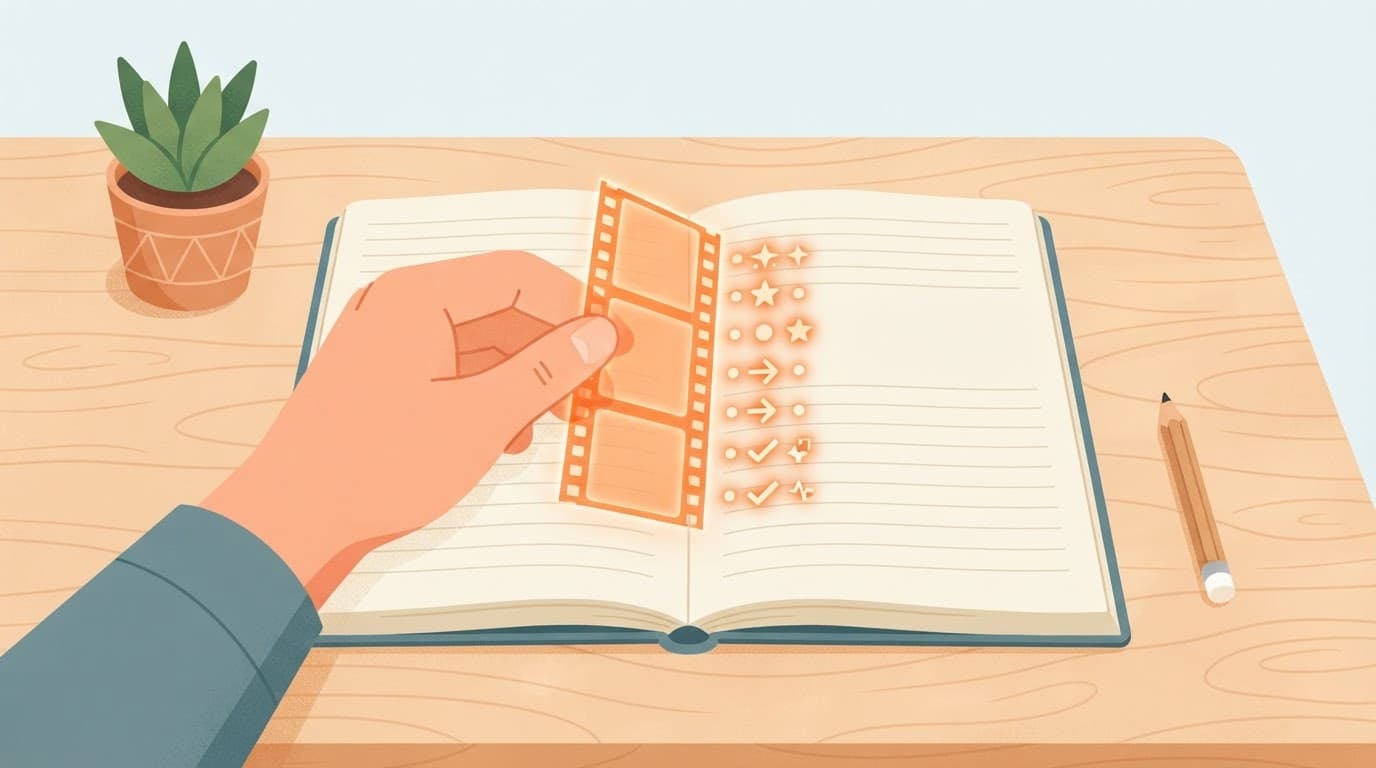
To get a YouTube summary into Notion, Obsidian or a plain doc, summarize the video with sum.video, open the summary and use Copy as Markdown. Paste the result into your note app. You get the main points and timestamped chapters as clean Markdown, not a screenshot or a wall of text.
This guide walks through the steps, shows what the pasted note looks like and covers a few habits that keep a pile of video notes useful later.
Why Markdown is the right format
Most note apps understand Markdown: headings, bullet lists, bold text and links. If the summary arrives as Markdown, it keeps its structure when you paste it. Headings stay headings, lists stay lists, and the timestamps stay as links you can click.
Copying from a normal web page often brings along odd fonts, colors and spacing. Markdown avoids that, because it is plain text with a few simple symbols.
Step by step
- Open the video in sum.video. Paste the YouTube link on the homepage, or put
sum.video/in front of the YouTube URL. The video needs captions or a transcript, because sum.video reads the public transcript. See how it works if you want the details. - Wait for the summary. It contains key insights with clickable timestamps, the full transcript in a tab and key moments of the video.
- Choose Copy as Markdown. This copies the summary with its main points and timestamped chapters.
- Paste into your app. In Notion, paste into a new page. In Obsidian, paste into a new note. In a Google Doc or any text editor, paste as plain text.
- Add your own lines. Write one sentence on why you saved the video and what you will do with it. This is the part that makes a note yours.
What the pasted note looks like
A pasted summary has a shape like this:
# Video title

## Main points
- First main point
- Second main point

## Chapters
- 00:00 Introduction
- 04:30 First topic
- 12:10 Second topic
The exact content depends on the video. The point is that the headings and lists are real, so you can search, link and reorganize them in your app.
Notion tips
- Make a database called "Videos" with properties such as source link, topic, date and status (to watch, summarized, used).
- Paste each summary as the content of a database row. You can filter by topic later.
- Use a toggle block for the chapters if the page gets long.
Obsidian tips
- Save each summary as its own note and add a short front matter block with the video link and a tag.
- Link notes about the same subject to each other. A list of related videos on one topic turns into a small knowledge base. For more on this idea, read Build a personal knowledge base from YouTube videos.
- Because the output is plain Markdown, the files stay readable in any editor, now and in ten years.
Keep the timestamps
Timestamps are the most useful part of a video note. They let you go back to the exact moment instead of rewatching everything. If you want to understand how they work, read YouTube summary with timestamps.
When you quote or rely on a claim, click its timestamp and check the moment yourself. A summary tells you where to look, and you decide whether you agree.
Habits that keep notes useful
- Summarize first, then decide. Not every video deserves a note. Read the summary and keep only what you will use.
- One note per video. Do not merge several videos into one page. It is easier to link than to untangle.
- Add a reason. A single line such as "for the Q3 plan" tells future you why the note exists.
- Tag by use, not by channel. Tags like "interview prep" or "recipe" are more helpful than channel names.
- Review weekly. Spend ten minutes moving the good notes into the right place and deleting the rest.
For more ideas on turning summaries into notes you reuse, see Turn YouTube videos into notes you will actually reuse.
Several videos at once
If you have a playlist or a set of videos on one subject, sum.video can write one combined summary with the points the videos share and where they differ. You can then copy that into a single note and link to each video's own note. The guide on summarizing a YouTube playlist explains how it works.
Limits to know
- sum.video summarizes YouTube videos only. It does not handle podcasts outside YouTube, PDFs or web pages.
- A video without captions or a transcript cannot be summarized.
- A summary is a shortcut, not a replacement. For a decision that matters, open the video at the timestamp and watch that part.
- Free accounts get 3 summaries a week. Pro is unlimited for text summaries. In the US Pro costs $4.99 a month or $39.90 a year, and prices vary by country. See pricing.
A worked example
Say you watch a 40-minute lecture on a topic you are learning. You summarize it, copy it as Markdown and paste it into a note named after the lecture. Under the pasted points you add: "Revise the second chapter before Friday." A week later you search your notes for the topic, find the page, click the timestamp of the chapter and watch only those minutes. The whole routine takes a few minutes, and the lecture is now part of your notes instead of a tab you meant to close.
Common problems
- The paste looks flat. Some apps need a paste as Markdown or plain text option. Try it if headings do not appear.
- The note feels too long. Delete the points you will not use. A shorter note is easier to review.
- You forget why you saved it. Add the one-line reason straight away, while you still remember.
Summary
Summarize the video, choose Copy as Markdown, paste into your app and add one line of your own. That small routine gives you a library of notes with working timestamps, in a format that any tool can open.
Frequently asked questions
Can I paste a sum.video summary into Notion?
Yes. Use Copy as Markdown on the summary and paste it into a Notion page. Headings and lists keep their structure.
Does the copied summary include timestamps?
Yes. Copy as Markdown includes the main points and the timestamped chapters, so you can find the moment in the video again.
Does it work with Obsidian?
Yes. Obsidian notes are Markdown files, so you can paste the copied summary into a new note as it is.
Do I need a paid plan to copy a summary as Markdown?
Copy as Markdown is part of the summary view. Free accounts get 3 summaries a week, so you can try it on real videos before you decide on Pro.
Can I copy a summary of a video without captions?
No. sum.video reads the public transcript, so a video without captions or a transcript cannot be summarized.
Related reading
 How accurate are AI YouTube summaries? 6 checks before you trust oneAI summaries of YouTube videos are usually good at the main points and weaker on details. Here are six quick checks to catch mistakes before you rely on one.
 A 2-hour "make money online" video: separate the method from the sales pitchTurn a long side hustle video into the steps, the costs and the pitch moments, so you can decide in 10 minutes whether to try it.
 A 60-minute fitness or health video: turn it into a plan you can followPaste a long fitness or health video into sum.video and get the exercises, routine and key points with timestamps, so you can start instead of scrubbing.
Latest posts
 How to add chapters to a YouTube video (and generate the timestamps)Add chapters to your YouTube video: the three rules, how to write the timestamps in the description, and how to generate them from the transcript.
- How accurate are AI YouTube summaries? 6 checks before you trust oneAI summaries of YouTube videos are usually good at the main points and weaker on details. Here are six quick checks to catch mistakes before you rely on one.
 sum.video Free vs Pro: which plan do you need?Free gives you 3 summaries a week and every core feature. Pro removes the limits. Here is how to tell which one fits the way you watch.