
How to get a YouTube transcript you can search, copy and use
Get the full transcript of a YouTube video with timestamps, search it, copy it, or fetch it by API. Four ways, and what to do when there are no captions.
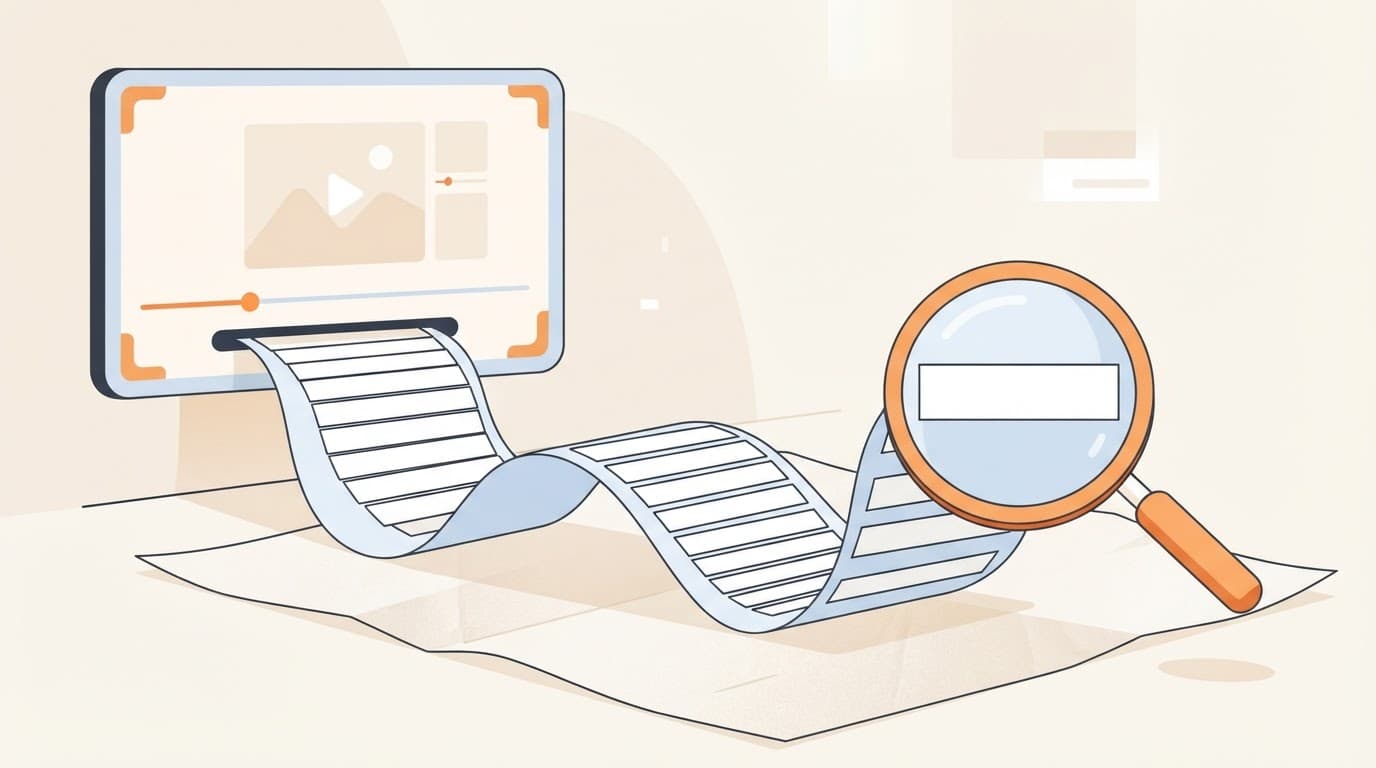
The fastest way to get a YouTube transcript is to paste the video link into sum.video and open the Transcript tab: the full text appears with timestamps, searchable and copyable, and clicking any line jumps to that moment in the video. This guide covers four ways to get a transcript, which one fits which job, and what to do when a video has none.
Before you start: where transcripts come from
A YouTube transcript is the text of the captions attached to a video. Those captions are either written by the creator or generated automatically. sum.video reads this public transcript. It never downloads the video and never accesses your YouTube account.
This has one important consequence: a video without captions or a transcript has nothing to read, so it cannot be summarized or turned into a transcript. If that is your case, jump to when there is no transcript.
Way 1: the website (one video, nothing to install)
- Copy the YouTube link.
- Paste it on the transcript page or on the homepage. A shortcut also works: put
sum.video/in front of the YouTube address in your browser bar. - Open the Transcript tab.
- Read it, search it for a word, or copy it.
Every line has a timestamp. Click one and the video jumps to that point, which is handy when you want to hear how something was said instead of only reading it. For searching inside a transcript, see how to search inside a YouTube video's transcript.
Use this way when you need the text of one video now.
Way 2: the Chrome extension (while you watch)
The Chrome extension adds a Summarize button next to the YouTube player. You stay on the YouTube page and open the summary and transcript from there, so you do not copy links around.
Use this way when you watch a lot on the desktop and want the transcript one click away.
Way 3: inside ChatGPT or Claude
If you already work in a chat assistant, the sum.video connector ("YouTube Summarizer") lets the chat fetch a video's full transcript with timestamps. You sign in with a sum.video account, then ask in plain words, for example "give me the transcript of this video and list the chapters". The same connector can summarize the video, answer questions about it and give its key moments.
One detail on limits: on the free plan, a full transcript in the connector counts as one chat message of the 3 a week. Details are in how to summarize YouTube videos inside ChatGPT or Claude with a connector.
Use this way when the transcript is the input for something else you are doing in a chat, such as quoting, translating or analysing.
Way 4: the API (many videos, your own app)
If you are a developer and need transcripts in code, there is a REST endpoint:
curl -X POST https://sum.video/api/v1/transcript \
  -H "X-API-Key: YOUR_KEY" \
  -H "Content-Type: application/json" \
  -d '{"url": "https://www.youtube.com/watch?v=VIDEO_ID", "lang": "en", "format": "json"}'
Details that matter:
- Send
urlorvideo_id. Optionallangdefaults toen. formatcan bejson(segments withoffsetanddurationin seconds),textorsrt.- It returns existing YouTube captions, manual or auto-generated. It does not transcribe audio.
- The response tells you the caption track's real language and whether it was auto-generated.
- A transcript costs 2 credits. Requests that return no transcript or fail on our side cost nothing.
- The first API key comes with 10 free credits, which is 5 transcripts.
The full walkthrough with Python and JavaScript is in how to get a YouTube transcript with an API. Keys are created in your dashboard, and the API page lists the endpoint.
Which way should you choose?
| Your job | Best way |
|---|---|
| Read or copy the text of one video | Website |
| Watch on desktop and grab text as you go | Chrome extension |
| Use the transcript inside a chat | ChatGPT or Claude connector |
| Fetch transcripts for many videos in code | API |
Copying the transcript into your notes
If what you want is notes, not the raw text, a transcript is rarely the best format: a long talk can be thousands of words. Two better options:
- Copy as Markdown gives you the summary with its main points and timestamped chapters, ready to paste into Notion, Obsidian or a document. See how to copy a YouTube summary into Notion or Obsidian.
- Ask the chat a specific question about the video. It answers from the transcript, so you get the passage you need without reading the rest.
Keep the full transcript for when you need the exact words: a quote, a number, a name.
Getting a transcript in another language
Transcript text is in the language of the caption track. If you want to read the content in your own language, ask for a summary instead: sum.video summarizes in any of 17 languages whatever the video's language, on every plan. The languages are English, Hungarian, Polish, Spanish, German, French, Portuguese, Japanese, Korean, Italian, Dutch, Russian, Arabic, Hindi, Chinese, Indonesian and Turkish. More in translate YouTube summaries into your language.
When there is no transcript
Sometimes the answer is that there is nothing to fetch:
- The creator turned captions off and automatic captions are not available.
- The video is private, removed or a live stream in progress.
In those cases sum.video cannot produce a transcript, and the API returns 404 no_transcript (at no cost). Read what you can do when a YouTube video has no captions or transcript.
Free and paid
The website, extension and connector use your sum.video plan. The free plan gives 3 summaries and 3 chat messages a week, with no credit card, and opening an existing summary does not use the weekly quota. Pro is $4.99 a month in the US, or $39.90 a year with a 15-day free trial on the annual plan, and prices vary by country. The API uses credits instead of a plan, and credits never expire. See pricing.
Summary
- For one video: paste the link on sum.video and open the Transcript tab.
- While watching on desktop: use the Chrome extension.
- Inside a chat: use the ChatGPT or Claude connector.
- In code: use the API.
- No captions means no transcript, whichever way you choose.
Frequently asked questions
How do I get the transcript of a YouTube video?
Paste the video link into sum.video and open the Transcript tab. The full text appears with timestamps, searchable and copyable, and clicking a line jumps to that moment.
Does it work for any YouTube video?
It works on public YouTube videos that have captions or a transcript. A video without captions cannot be summarized or turned into a transcript.
Does sum.video download the video?
No. It reads the public transcript and never downloads the video or accesses your YouTube account.
Can I get transcripts for many videos at once?
Yes, with the REST API. Each transcript costs 2 credits, failed or empty requests cost nothing, and the first API key includes 10 free credits.
Can I read the content in my own language?
Yes. Summaries are available in any of 17 languages, whatever the language of the video, on every plan.
Related reading
 Understand a YouTube video in a language you do not speak: 5 practical optionsCaptions, translated summaries and transcripts: how to get the content of a foreign-language YouTube video, and where each option falls short.
 How to summarize a YouTube video (4 ways, from free to one click)Four ways to summarize a YouTube video, from reading YouTube's own transcript to a one-click summary with timestamps, and how to check the summary is right.
 How accurate are AI YouTube summaries? 6 checks before you trust oneAI summaries of YouTube videos are usually good at the main points and weaker on details. Here are six quick checks to catch mistakes before you rely on one.
Latest posts
 How to add chapters to a YouTube video (and generate the timestamps)Add chapters to your YouTube video: the three rules, how to write the timestamps in the description, and how to generate them from the transcript.
- How accurate are AI YouTube summaries? 6 checks before you trust oneAI summaries of YouTube videos are usually good at the main points and weaker on details. Here are six quick checks to catch mistakes before you rely on one.
 sum.video Free vs Pro: which plan do you need?Free gives you 3 summaries a week and every core feature. Pro removes the limits. Here is how to tell which one fits the way you watch.