
How to summarize YouTube videos inside ChatGPT or Claude with a connector
Add the YouTube Summarizer connector to ChatGPT or Claude and summarize videos in the chat.

You can summarize YouTube videos without leaving ChatGPT or Claude by adding the "YouTube Summarizer" connector from sum.video. You sign in with a sum.video account once, then paste a video link in the chat and ask for a summary, the transcript or the key moments.
Why use a connector
Pasting a transcript into a chat by hand works, but it is slow: you open the video, find the transcript, copy it, hope it fits, and then you still have no timestamps you can click. A connector lets the chat tool call sum.video for you. The video is read from its public transcript, so it never downloads the video and never touches your YouTube account.
Use it when you already live in a chat window and want video answers next to the rest of your work. If you only want a quick summary, the website or the Chrome extension may be faster.
Set it up
- Create a sum.video account. A free account is enough, with no credit card. See pricing for the plans.
- Open the connectors settings in your chat app. The exact menu name changes between ChatGPT and Claude and between app versions, so look for "connectors" or "apps" in the settings. The sum.video connectors page and the ChatGPT page explain the setup.
- Add "YouTube Summarizer". Sign in with your sum.video account when asked. This links the connector to your account, so your library and your weekly quota are the same as on the website.
- Start a new chat and paste a YouTube link. Ask for what you need in plain words.
What you can ask
In the chat, the connector can:
- summarize a video, with timestamped key insights
- answer questions about the video, based on its transcript
- give the full transcript with timestamps
- list the video's chapters
- give its key moments, with a link to each
- summarize the video's comments
- summarize a playlist, or a channel's latest videos
- compare videos
- search and ask your library of earlier summaries
- manage your channel subscriptions and their new videos
Some prompts that work well:
- "Summarize this video and list the three claims I should fact check."
- "Give me the key moments of this talk and a link to each."
- "Where in this video do they talk about pricing?"
- "Compare these three videos and tell me which one explains it best."
- "What do the comments agree on, and what do people push back on?"
A good habit is to ask a narrow question after the summary. The answer comes from the transcript, so you can ask for the exact point and then open the linked moment to check it yourself.
Connector or website: which one
| You want | Better choice |
|---|---|
| Ask follow-up questions next to your own notes and other chats | Connector |
| Compare several videos in one conversation | Connector (or the website's Compare) |
| Play all key moments back to back | Website or Chrome extension |
| A summary beside the YouTube player | Chrome extension |
| Quick summary from your phone | The iOS and Android apps |
Whatever you use, your summaries are saved to your account and appear in your library on the website and in the apps.
Limits to know about
- Captions are required. The video must be public and have captions or a transcript. If not, there is nothing to summarize. See what to do when a video has no captions.
- Free quota applies. Free accounts get 3 summaries and 3 chat messages a week. In the connector, a full transcript counts as one chat message. Opening a summary that already exists does not use the weekly quota.
- Multi-video limits. Free accounts get one multi-video summary a week, up to 3 videos, and one comment summary a week. Pro removes most of these limits: unlimited text summaries, playlists and channels up to 50 videos, and unlimited comment summaries. Pro is $4.99 a month in the US, and the price varies by country.
- The chat tool decides the rest. How the answer looks, how long it can be and whether you must approve each tool call is set by ChatGPT or Claude, not by sum.video. Check the chat app's own help for those details.
- It only knows YouTube. Podcasts outside YouTube, PDFs, web pages and local files are not supported.
A simple first test
Pick a video you know well, about 10 minutes long. Ask for a summary, then ask "which moment covers X?" and open the linked timestamp. If the answer matches what you remember, you can trust the workflow on videos you have not watched. If you want to keep the result, ask for it in a form you can paste into your notes, or use Copy as Markdown on the website. This guide shows how.
Ideas for getting more from the connector
Once the basics work, a few habits make the chat more useful:
- Name your goal first. "I am preparing a team talk, summarize this video and list what I can reuse" gives a more useful answer than "summarize".
- Ask for the moments, not only the text. A summary tells you what was said. The key moments and timestamps tell you where to look when you want to check the exact words.
- Use the library. Because the connector shares your account, you can ask a question across your earlier summaries (a Pro feature) and get links back to the videos and timestamps.
- Follow channels from the chat. You can manage channel subscriptions and see their new videos without opening the website. See how to keep up with channels without watching every upload.
Frequently asked questions
Do I need a sum.video account to use the connector?
Yes. You sign in with a sum.video account when you add the connector. A free account is enough and needs no credit card.
Does the connector work with both ChatGPT and Claude?
Yes. The YouTube Summarizer connector is available for ChatGPT and for Claude.
Can it give me the full transcript?
Yes, the full transcript with timestamps. On a free account a full transcript counts as one chat message of the weekly three.
Can it summarize a whole playlist or a channel?
Yes. It can summarize a playlist or a channel's latest videos. Free accounts get one multi-video summary a week for up to 3 videos, Pro up to 50 videos per run.
Does it work for videos without captions?
No. It reads the public transcript, so a video without captions or a transcript cannot be summarized.
Related reading
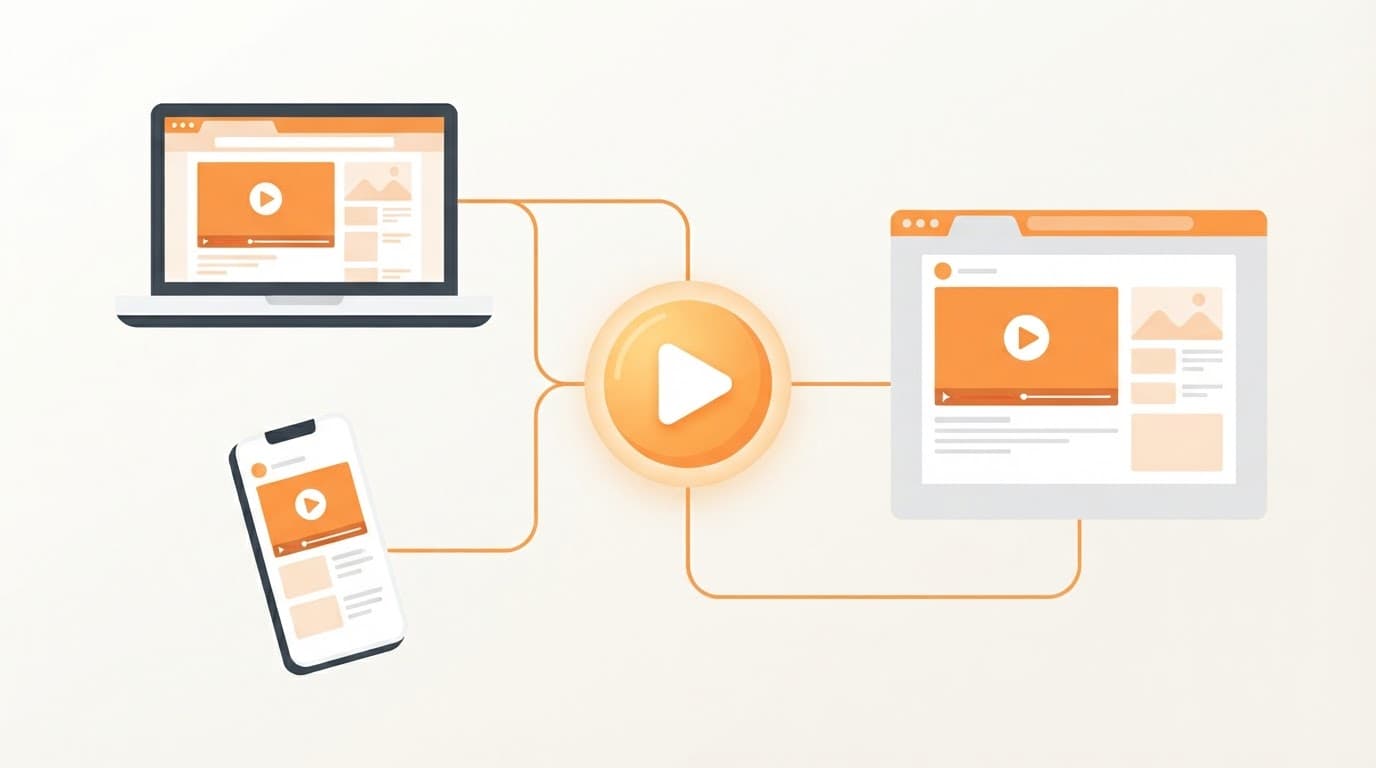 5 ways to summarize a YouTube video: website, shortcut, extension, app or chatThere is more than one way to get a YouTube summary. Compare the website, the URL shortcut, the Chrome extension, the mobile apps and the ChatGPT or Claude connector.
 YouTube AI summaries are one paragraph and basically useless: here’s a better optionNative YouTube summaries are often “one paragraph and basically useless.” sum.video gives you instant, detailed summaries with insights, timestamps, and a transcript, not just a blurb.
 How accurate are AI YouTube summaries? 6 checks before you trust oneAI summaries of YouTube videos are usually good at the main points and weaker on details. Here are six quick checks to catch mistakes before you rely on one.
Latest posts
 How to add chapters to a YouTube video (and generate the timestamps)Add chapters to your YouTube video: the three rules, how to write the timestamps in the description, and how to generate them from the transcript.
- How accurate are AI YouTube summaries? 6 checks before you trust oneAI summaries of YouTube videos are usually good at the main points and weaker on details. Here are six quick checks to catch mistakes before you rely on one.
 sum.video Free vs Pro: which plan do you need?Free gives you 3 summaries a week and every core feature. Pro removes the limits. Here is how to tell which one fits the way you watch.